Wednesday, 7 September 2022

HCM Extract in Oracle Fusion Cloud

 Steps for creation of HCM Extract in Oracle Fusion Cloud.

Login as HCM Implementation User

Navigate to My client Group -> Data exchange


Under HCM Extract section click on Extract Definitions


It will Open Extract Definition Page 

Click on + icon to create new extract 


Enter necessary details for creation of HCM Extract

Name, Type , check Box for changes only (for getting incremental extracts), Consumer

Then click on OK

It will take you to define extract screen


 In parameter you can see some predefine parameter as we select check box for changes only.

If you wanted to add any new parameter, then you can click on + Add icon


 Once all details enter save changes and then click on Design

Enter details for root data group


If you wanted to add any condition, then add filter


Under record group now create record

Right click on person record group and add new record


Enter details for name and tag for record


Then click on attributes too add attribute from data base item

From search test you can search attributes and select check box to add it.

After selecting attribute please save record.


Now for adding child data group

 right click on record group and add child data group

Enter details for child data group

Then click on connect data groups and check data group join condition

If you want to remove/add any condition you can do it

If you want to add any filter, then you can add it in filter section.

Then save child record group.

Now add record under child data group (Assignments)

Right click on Assignments record group and add new record


Enter details for name and tag

Save record


Then click on attributes to add attribute for assignment record. after selecting attribute from list for child data group save record.


Now click on Delivery

Click on + add button to add delivery option for this extract

And enter details


Enter details for delivery options 

Click on save button and then validate HCM extract


Now from extract list submit extract

Enter required parameter and submit extract

 Click on extract link to check execution details

From delivery option you can download file as well

Generated file


 On UCM search it using content id populated on delivery option

You will find HCM Extract file generated on UCM


Thanks all for reading this post.

Wednesday, 3 August 2022

HCM Cloud Compensation - How to change salary for Employee in compensation

 Login as HCM implementation user

My client Group -> Person Management


Search for employee


select employee from list and Click on employee


Click on Task icon from right side and select change salary from compensation task


Then click on propose new salary button


Enter date from which change salary will get affected and select Action as Change salary

Select reason for changing salary 


Change salary from 21.15 to 22 USD per hour


Click on continue

It will show you current and proposed salary for your review


Save and submit


Now it will show new salary in salary history


Monday, 25 July 2022

HCM Fast Formula Creation Steps

Fast Formula is language to write formula using English word and basic mathematics functions to perform calculation or comparison.

 Section of Fast formula :

1. Alias Section (Optional)
2. Default Section
3. Inputs Section
4. Calculation Section
5. Comments
6. Return Section

Create sample Fast formula for absence.

Search for Fast formula task from setup and maintenance


 Create new Fast Formula

click on continue after entering details

 Write simple formula 

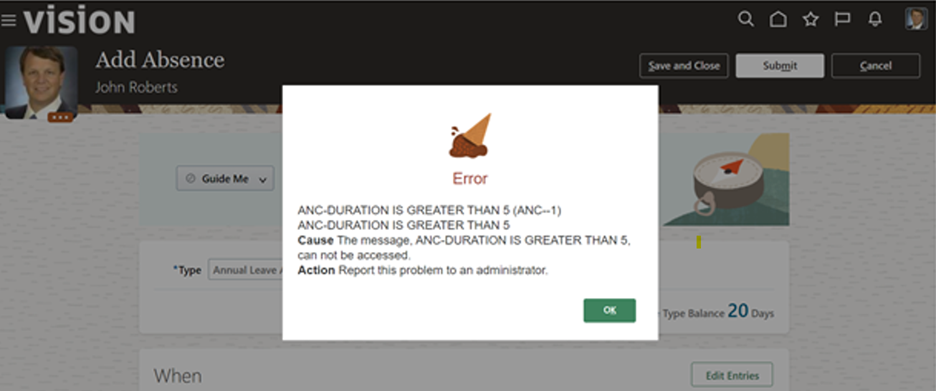
This will check if leave applied duration is greater than 5 then it will show error ‘DURATION IS GREATER THAN 5’
====================================
Code :
/**********************************
Formula Name : Annual Leave Fast Formula Demo
Formula Type : Global Absence Entry Validation 

***********************************/

INPUTS ARE

IV_START_DATE,
IV_END_DATE,
IV_TOTALDURATION

VALID='Y'
IF IV_TOTALDURATION> 5 THEN
(
  VALID ='N'
  ERROR_MESSAGE = 'DURATION IS GREATER THAN 5'
)

RETURN VALID, ERROR_MESSAGE
==================================

Save, Submit and then compile


Now attached Fast formula to Absence Type ‘Annual Leave AU’ as this absence type is assigned to employee

Add Fast Formula at validation formula


Save the changes

Now Login using employee and click on time and absence


Add Absence


Apply leave for period which total days will be greater than 5


After entering comments and reason submit absence


It will apply our fast formula while validating this absence records and show error


Now change to date range so total duration will become 5 and it will not satisfy fast formula condition


Submit absence and this time it allows to submit leave without any error


Oracle Fusion SQL Queries to get Sales Person/Sales Representative information for an Order

1) Get sales person details if the Sales Person ID is known SELECT  jrs.SALESREP_NUMBER  ,         jrs.status           ,         jrs.START_...